
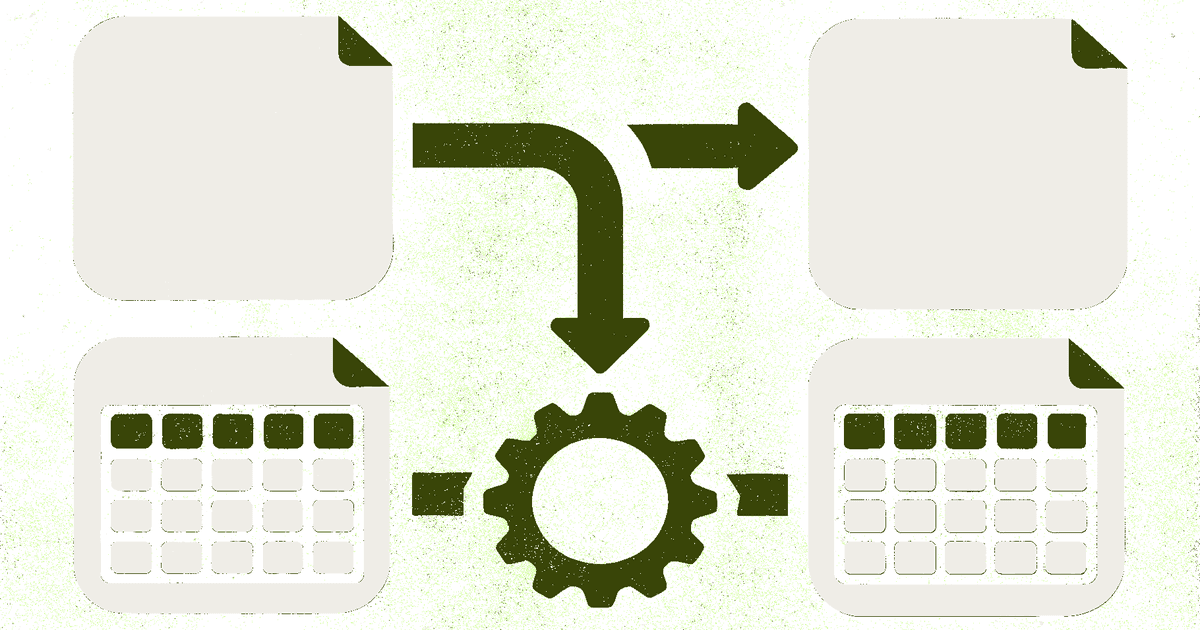
If you convert a CSV to Google Sheets once, you import it. If you convert 20 different CSVs on a Tuesday afternoon, you batch convert them. But if you're opening the same CSV export every single morning — yesterday's sales report, last night's analytics pull, this week's inventory snapshot — neither of those is the right fix. What you need is a pipeline that runs on its own.
This guide covers automating a recurring CSV feed into Google Sheets: a report that gets generated daily, hourly, or on every new file, without you touching Google Sheets at all. It's a different problem from batch conversion, which is about clearing a backlog of existing files. Automation is about making the next 100 exports handle themselves.
Automate vs. Batch Convert: Which One Do You Need?
| Batch convert | Automate | |
|---|---|---|
| Trigger | You, manually, right now | A schedule or a new file appearing |
| File count | Fixed — a folder of existing files | Ongoing — files that don't exist yet |
| Runs when you're away | No | Yes |
| Example | "I have 15 old exports to clean up" | "A new sales CSV lands every morning at 6am" |
If that's you — a recurring file, not a pile of old ones — here are five ways to automate it, roughly ordered from least to most technical.
Method 1: IMPORTDATA (Zero Code, Auto-Refreshing)
The fastest way to automate CSV into Google Sheets involves no script at all. Google Sheets has a built-in formula that pulls a CSV from a URL and re-fetches it automatically.
=IMPORTDATA("https://example.com/reports/daily-sales.csv")
Drop that into cell A1 of a blank sheet. Google Sheets fetches the file, parses it as CSV, and populates the grid. Every time the sheet recalculates — roughly every hour, or whenever you open the file — it re-fetches the URL. If the source file changes, your sheet updates without you doing anything.
The Catch: The File Needs a Public URL
IMPORTDATA only works on files reachable over HTTP(S). A CSV sitting in Finder or Downloads doesn't have a URL. You need to host it somewhere first:
| Source | How to get a usable URL |
|---|---|
| GitHub repo | Use the raw file URL (raw.githubusercontent.com/...) |
| Google Drive | Share the file, then convert the share link to a direct-download link (.../uc?export=download&id=FILE_ID) |
| A server you control | Any public file path works directly |
| An analytics/reporting tool | Most export tools with a "scheduled export" feature can drop the file straight into cloud storage with a stable URL |
If your CSV is generated by a tool that already writes it to cloud storage on a schedule (an analytics platform, a CRM export, a cron job on a server), IMPORTDATA is the least effort way to wire that up — one formula, no script, no credentials to manage.
Limitations
- Refresh timing isn't fully controllable — Sheets decides when to recalculate, roughly hourly.
- Files behind login walls or authentication don't work; the URL must be publicly fetchable (or shared with "anyone with the link").
- Large files (tens of thousands of rows) can be slow or hit Sheets' formula limits.
- It replaces the entire sheet range each refresh — you can't merge new rows into existing data, only overwrite.

Method 2: Google Apps Script Triggers (Runs on Google's Servers)
IMPORTDATA covers "fetch a public file automatically." For anything more custom — watching a Drive folder for new uploads, transforming data before it lands, notifying someone when a file arrives — you want an Apps Script trigger, not a one-off script you run by hand.
The distinction matters: a script you paste in and click "Run" is a manual tool. A script with a time-driven trigger or an event trigger runs unattended, on Google's infrastructure, even when your laptop is closed.
Time-driven: check a folder every N minutes
function autoConvertNewCSVs() {
  const folder = DriveApp.getFolderById('YOUR_FOLDER_ID');
  const files = folder.getFilesByType(MimeType.CSV);

  while (files.hasNext()) {
    const file = files.next();
    const csvData = file.getBlob().getDataAsString();
    const rows = Utilities.parseCsv(csvData);

    const sheet = SpreadsheetApp.create(file.getName());
    sheet.getActiveSheet()
      .getRange(1, 1, rows.length, rows[0].length)
      .setValues(rows);

    file.moveTo(DriveApp.getFolderById('YOUR_ARCHIVE_FOLDER_ID'));
  }
}
To make this run automatically instead of manually: open the script editor, click the clock icon ("Triggers"), and add a new trigger for autoConvertNewCSVs set to run time-driven, every hour. From then on, any CSV dropped into that Drive folder gets picked up on the next run — no manual step at all.
Setup
- Go to script.google.com and create a project.
- Paste the script, replacing the folder IDs.
- Under Triggers, add a time-driven trigger (hourly, daily, or every few minutes).
- Authorize the script's Drive access when prompted — this only happens once.
Pros:
- ✅Runs on Google's servers, not your machine — works even when your laptop is off
- ✅Free, no third-party account needed
- ✅Can transform data, rename files, send notifications — full control
- ✅Trigger frequency down to every minute
Cons:
- ❌Requires JavaScript to customize beyond the basics
- ❌6-minute execution limit per run — large batches need chunking
- ❌Debugging triggers is harder than debugging a script you run by hand
- ❌No built-in alerting if a run fails silently
Best for: a recurring Drive folder you don't want to check yourself, run by people comfortable editing JavaScript.
Method 3: Python + a Scheduler (Cron or GitHub Actions)
If the CSV originates outside Google Drive entirely — an API you call, a database export, a report your own server generates — you need something that runs the fetch-and-upload script on a schedule, independent of any file landing in Drive first.
Local: cron (Mac/Linux)
# crontab -e
0 6 * * * /usr/bin/python3 /path/to/sync_csv_to_sheets.py
This runs sync_csv_to_sheets.py every day at 6am — as long as the Mac is on and awake. Combine with caffeinate or a scheduled wake if the machine sleeps overnight.
Server-side: GitHub Actions (runs even if your machine is off)
For a setup that doesn't depend on your laptop staying on, a scheduled GitHub Actions workflow calling the same script is a common pattern for small teams already using GitHub:
# .github/workflows/sync-csv.yml
name: Sync CSV to Google Sheets
on:
  schedule:
    - cron: '0 6 * * *'   # 6am UTC daily
jobs:
  sync:
    runs-on: ubuntu-latest
    steps:
      - uses: actions/checkout@v4
      - uses: actions/setup-python@v5
        with:
          python-version: '3.11'
      - run: pip install google-api-python-client google-auth pandas
      - run: python sync_csv_to_sheets.py
        env:
          GOOGLE_CREDENTIALS: ${{ secrets.GOOGLE_SERVICE_ACCOUNT_JSON }}
The Python script itself reads the CSV (from an API, a database query, or a file the same workflow generates) and writes it to a Google Sheet via the Sheets API — the same service.spreadsheets().values().update(...) call used for one-off batch scripts, just invoked on a schedule instead of by hand.
Pros:
- ✅Runs independent of any specific machine being on
- ✅Free on GitHub Actions for reasonable schedules (public repos, or within free minutes on private)
- ✅Full control — call any API, transform data, handle errors, retry
- ✅Version-controlled alongside the rest of your automation
Cons:
- ❌Requires Python and Google Cloud service account setup
- ❌Credentials management (storing the service account key as a secret) has a learning curve
- ❌Overkill for a single, simple recurring file — Method 1 or 2 is faster to set up
Best for: developers who already have the source data in a script or API and want scheduling decoupled from any one computer.

Method 4: No-Code Automation Platforms (Zapier, Make)
If writing (or maintaining) a script isn't something you want to own, automation platforms handle the "watch for a trigger, then act" logic visually.
The relevant trigger for automation (as opposed to batch conversion) is usually Schedule rather than New File in Folder — though both work:
- Schedule trigger: "Every day at 6am, fetch this URL and create/update a Google Sheet."
- New file trigger: "Whenever a new CSV appears in this Drive folder or email inbox, convert it."
Either way, the platform runs the check on its own servers on the schedule you set — you don't need to keep anything open.
Pricing: Zapier's free tier includes scheduled triggers but caps at 100 tasks/month, which a daily automation will burn through in about 3 months of daily runs (30/month) plus any other Zaps you run. Paid plans start around $20/month for 750 tasks.
Best for: non-technical users who want recurring automation without touching code, and are fine paying a subscription for the convenience.
Method 5: Mac Folder Automation (Hazel + CSVtoSheets)
For a lighter-weight desktop version of "watch a folder, act automatically," Mac users can pair a folder-watching utility like Hazel with CSVtoSheets: set a Hazel rule that opens any new CSV landing in a specific folder (like a Downloads subfolder your export tool writes to) with CSVtoSheets automatically. The moment a file lands, it opens as a Google Sheet — no manual double-click required.
This isn't server-side automation — the CSV still has to land on that Mac, and the Mac has to be awake — but for someone who's at their desk when reports arrive and just doesn't want to manually open each one, it removes the last manual step without any scripting.
Best for: Mac users already opening CSVs into Google Sheets by hand daily, who want to skip the double-click without setting up a script or cloud automation.
Comparison: Choosing an Automation Method
| Method | Setup effort | Runs without your machine on | Handles new files automatically | Cost |
|---|---|---|---|---|
| IMPORTDATA formula | Minutes | Yes (Google's servers) | No — one fixed URL | Free |
| Apps Script trigger | Low-medium | Yes (Google's servers) | Yes (folder watch) | Free |
| Python + cron | Medium | No (needs your machine on) | Yes | Free |
| Python + GitHub Actions | Medium-high | Yes | Yes | Free (within limits) |
| Zapier/Make | Low | Yes | Yes | $ subscription |
| Hazel + CSVtoSheets (Mac) | Low | No (needs your Mac on) | Yes | $ one-time |
If you're not sure where to start: try IMPORTDATA first. It takes five minutes and needs no new accounts. If your source file can't get a public URL, or you need more than "refresh a fixed file," move to an Apps Script trigger — it's still free and covers most recurring-folder use cases without a subscription.
Frequently Asked Questions
Q: Can I automate CSV to Google Sheets without any coding?
A: Yes — IMPORTDATA requires zero code if your file has a public URL, and Zapier/Make's visual trigger builders cover folder-watching and scheduling without writing scripts. Apps Script triggers require some JavaScript, but the sample script above can be copy-pasted with only the folder IDs changed.
Q: Why isn't my IMPORTDATA formula updating?
A: Sheets refreshes IMPORTDATA roughly every hour, or when the file is opened — it's not instant. If it's not updating at all, check that the URL is truly public (not behind a login) and returns raw CSV content, not an HTML page.
Q: What's the difference between this and batch converting CSV files? A: Batch conversion is for a fixed set of files you already have and want to convert once. Automation, covered here, is for a file that keeps regenerating — a daily export, an hourly pull — and needs a pipeline that runs without you re-triggering it each time.
Q: Can Google Apps Script run more often than every minute? A: No — the minimum interval for a time-driven trigger is one minute, and Google throttles very frequent triggers across your account. For near-real-time needs, an event-driven trigger (like a Drive push notification) is a better fit than polling every minute.
Q: Does CSVtoSheets automate this for me? A: CSVtoSheets automates the manual step — double-clicking a CSV converts it instantly, no import wizard. Paired with a Mac folder-watcher like Hazel (Method 5), that covers most desktop automation needs without scripting. For automation that needs to run when your Mac is off, use Method 1–4 instead.
Related Resources
- How to Batch Convert Multiple CSV Files to Google Sheets
- How to Import CSV to Google Sheets (4 Methods Compared)
- How to Handle Large CSV Files in Google Sheets
- 10 Common CSV Import Errors (And How to Fix Them)
- What Is a CSV File? Format Guide & Examples
Just need the manual step gone, not a whole pipeline? CSVtoSheets turns double-clicking a CSV into an instant Google Sheet — try it free for 3 files.